Connect
YouTube
YouTube connects through Google sign-in. You authorize Modiva against the Google account that owns your channel to upload videos, read analytics and manage comments.
Before you start
- A Google account with a YouTube channel.
- If you use a Brand Account, access to switch to that channel during sign-in.
Step-by-step setup
- 1
Sign in to Modiva
Log in at modiva.ai and open the Dashboard. You need a Modiva account before you can connect any platform — creating one takes a minute and no credit card is required for the free tier.
The Modiva dashboard — your home for connections, posts and analytics. - 2
Open Connections → New connection
In the left sidebar choose Connections, then click New connection. You'll see the full catalogue of platforms grouped by category (Social, Ads and CRM).
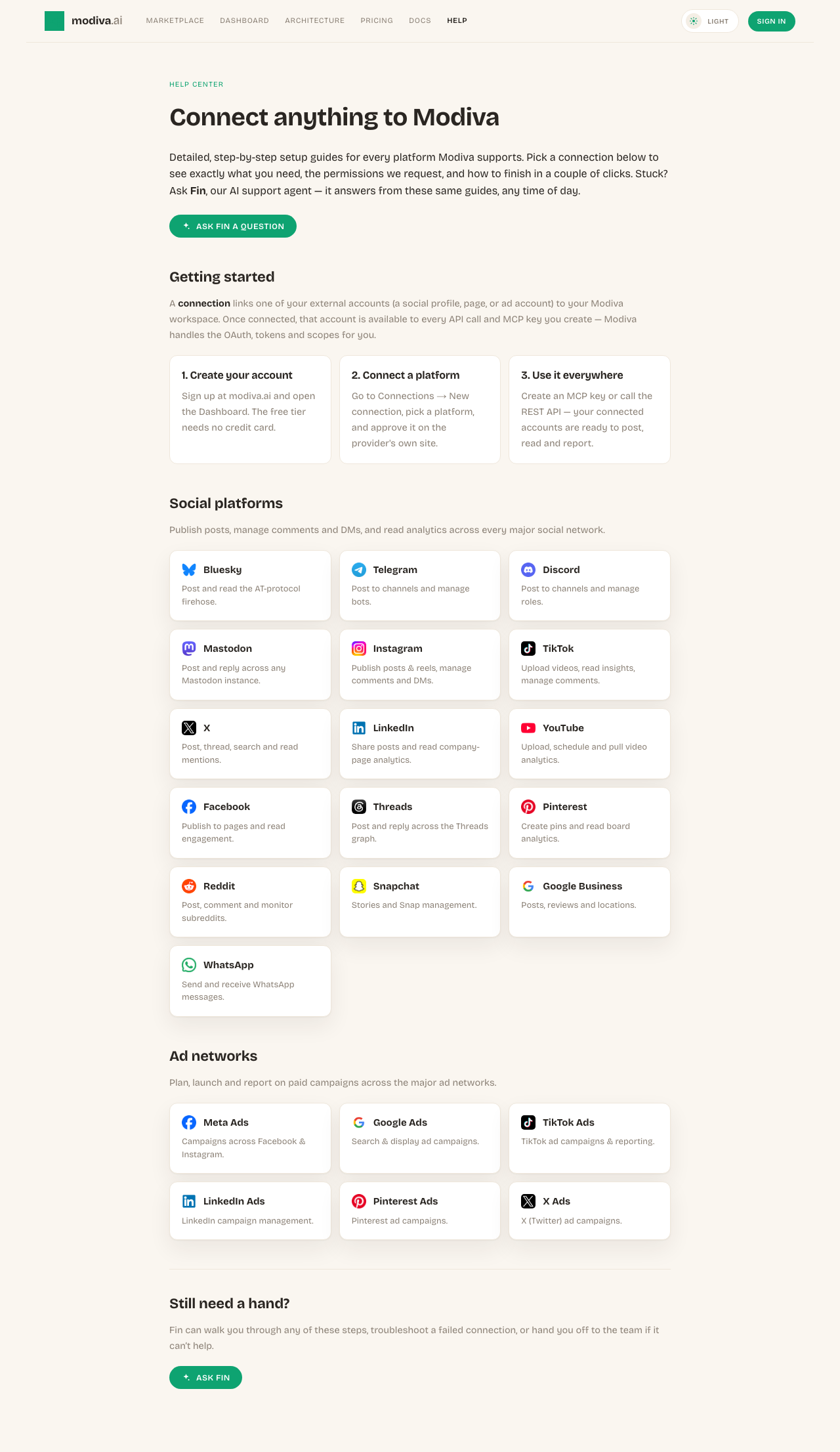
The connection picker. Use the search box or category filter to find your platform. - 3
Select YouTube
Click the YouTube card. Modiva redirects you to YouTube's official sign-in and permission screen — your password is entered on YouTube, never on Modiva.
Click Connect on the YouTube card to start the secure OAuth flow. - 4
Authorize Modiva on YouTube
Review the permissions Modiva is requesting and approve them. If you manage more than one account, page or profile, pick the one you want Modiva to manage.
YouTube's consent screen. Approve the requested scopes to continue. - 5
You're connected
YouTube now sends you back to Modiva and the connection appears with a green Connected status. From here it's available to every MCP key and API call in your workspace.

A healthy connection shows a green dot and the connected account name.
Permissions Modiva requests
When you connect YouTube, Modiva asks only for the access it needs to run the tools you use. You can revoke it any time from YouTube or by disconnecting in Modiva.
- Read your channel and video data
- Upload videos
- Manage videos and comments (force-ssl)
Troubleshooting & FAQ
Where is my YouTube password stored?
Nowhere. You sign in on the provider's own site and Modiva only receives a scoped access token, which is encrypted at rest with AES-256-GCM. Modiva never sees your password.
My connection says Expired or Error — what do I do?
Open Connections, find the platform and click Reconnect (or Refresh token). Providers periodically expire tokens or revoke them when you change your password; reconnecting re-runs the consent screen and restores access.
How do I disconnect?
Open Connections, click the YouTube row and choose Disconnect. Modiva deletes the stored token immediately. You can also revoke Modiva from inside YouTube's own app settings.
Google warns the app is unverified — is that a problem?
During Google's review window you may see an "unverified app" notice. Choose Advanced → continue to proceed. Once Modiva's Google verification completes the notice disappears.
I have multiple channels — which connects?
Google asks which channel/Brand Account to use during sign-in. Pick the channel you want Modiva to manage.
Need help with YouTube?
Fin can answer follow-up questions and walk you through any step.
YouTube playbooks
Connected? Put YouTube to work with these free growth playbooks.
