Connect
Discord
Discord connects through a bot token from the Discord Developer Portal. You create an application with a bot, invite it to your server, and paste its token into Modiva.
Before you start
- A Discord account and a server where you have Manage Server permission.
- A bot application created at the Discord Developer Portal, with its bot token.
- The bot invited to your server with the Send Messages permission.
Step-by-step setup
- 1
Create a Discord application + bot
Go to the Discord Developer Portal → New Application. Open the Bot tab, click Add Bot, then Reset Token and copy the token.

Copy the bot token from the Bot tab — treat it like a password. - 2
Invite the bot to your server
Under OAuth2 → URL Generator select the bot scope and the Send Messages permission, open the generated URL, and add the bot to your server.
Pick the bot scope and Send Messages, then authorize it on your server. - 3
Sign in to Modiva
Log in at modiva.ai and open the Dashboard. You need a Modiva account before you can connect any platform — creating one takes a minute and no credit card is required for the free tier.
The Modiva dashboard — your home for connections, posts and analytics. - 4
Open Connections → New connection
In the left sidebar choose Connections, then click New connection. You'll see the full catalogue of platforms grouped by category (Social, Ads and CRM).
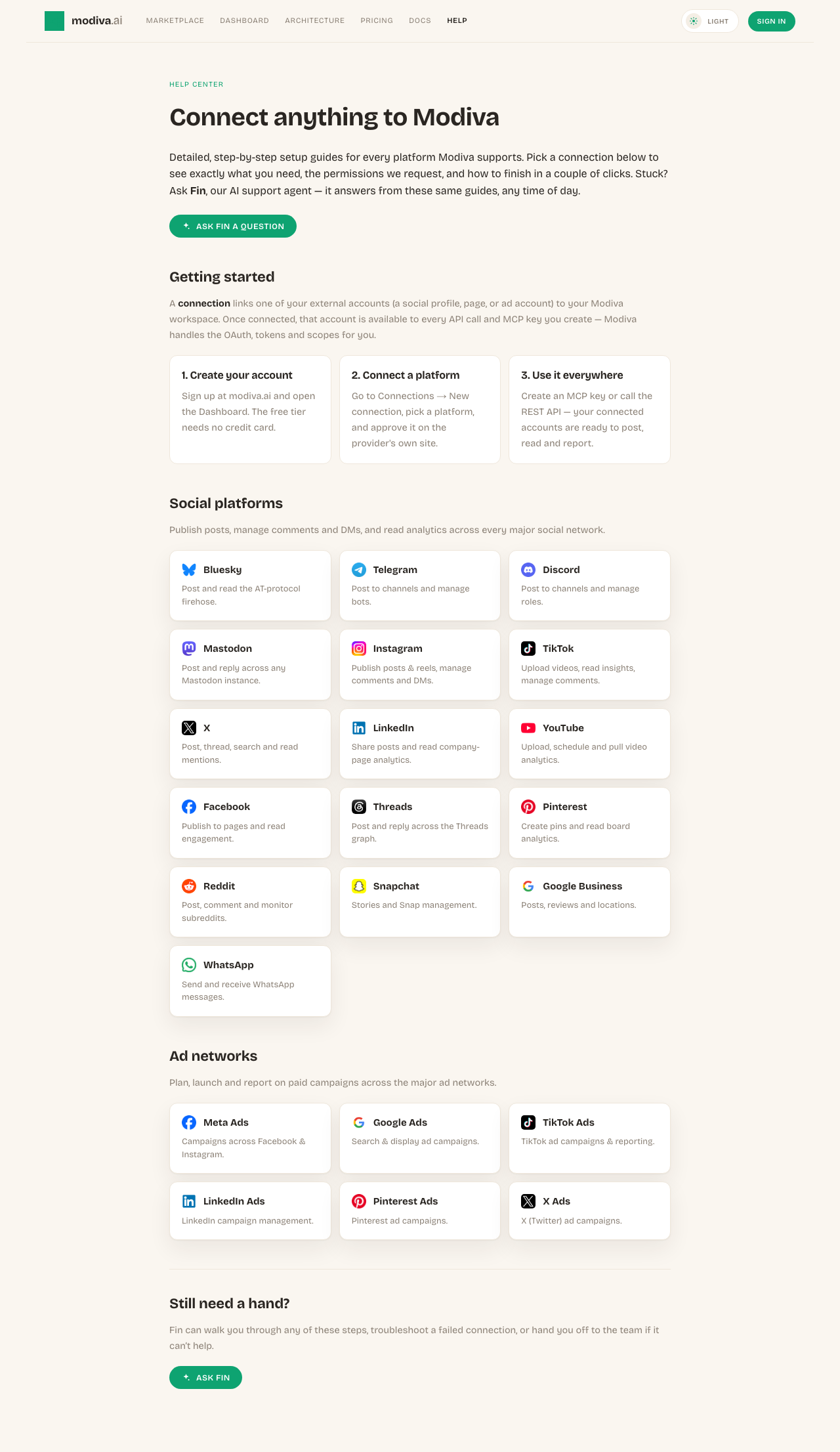
The connection picker. Use the search box or category filter to find your platform. - 5
Enter the bot token
Click the Discord card, paste the bot token, and optionally set a default channel ID. Click Connect.
Paste the bot token and an optional default channel ID.
Permissions Modiva requests
When you connect Discord, Modiva asks only for the access it needs to run the tools you use. You can revoke it any time from Discord or by disconnecting in Modiva.
- Send messages as the bot
- Manage messages and roles where granted
Troubleshooting & FAQ
How do I get a channel ID?
Enable Developer Mode in Discord (Settings → Advanced), then right-click a channel and choose Copy Channel ID.
The bot is offline / can't post — why?
Make sure the bot was invited with the Send Messages permission and has access to the target channel. Re-inviting with the correct scopes fixes most issues.
Need help with Discord?
Fin can answer follow-up questions and walk you through any step.
