Connect
Telegram
Telegram connects through a bot token issued by @BotFather. You create a bot, add it to your channel or group as an admin, and paste its token into Modiva.
Before you start
- A Telegram account.
- A bot created with @BotFather and its token (looks like 123456:ABC-DEF…).
- The bot added as an administrator to the channel or group you want to post to.
Step-by-step setup
- 1
Create a bot with @BotFather
In Telegram, open a chat with @BotFather, send /newbot and follow the prompts. BotFather replies with an API token — copy it.

@BotFather returns your bot token after /newbot. - 2
Add the bot to your channel as admin
Open your channel or group, go to Administrators → Add admin, and add your new bot. It needs admin rights to post messages.
Grant the bot Post messages permission in your channel. - 3
Sign in to Modiva
Log in at modiva.ai and open the Dashboard. You need a Modiva account before you can connect any platform — creating one takes a minute and no credit card is required for the free tier.
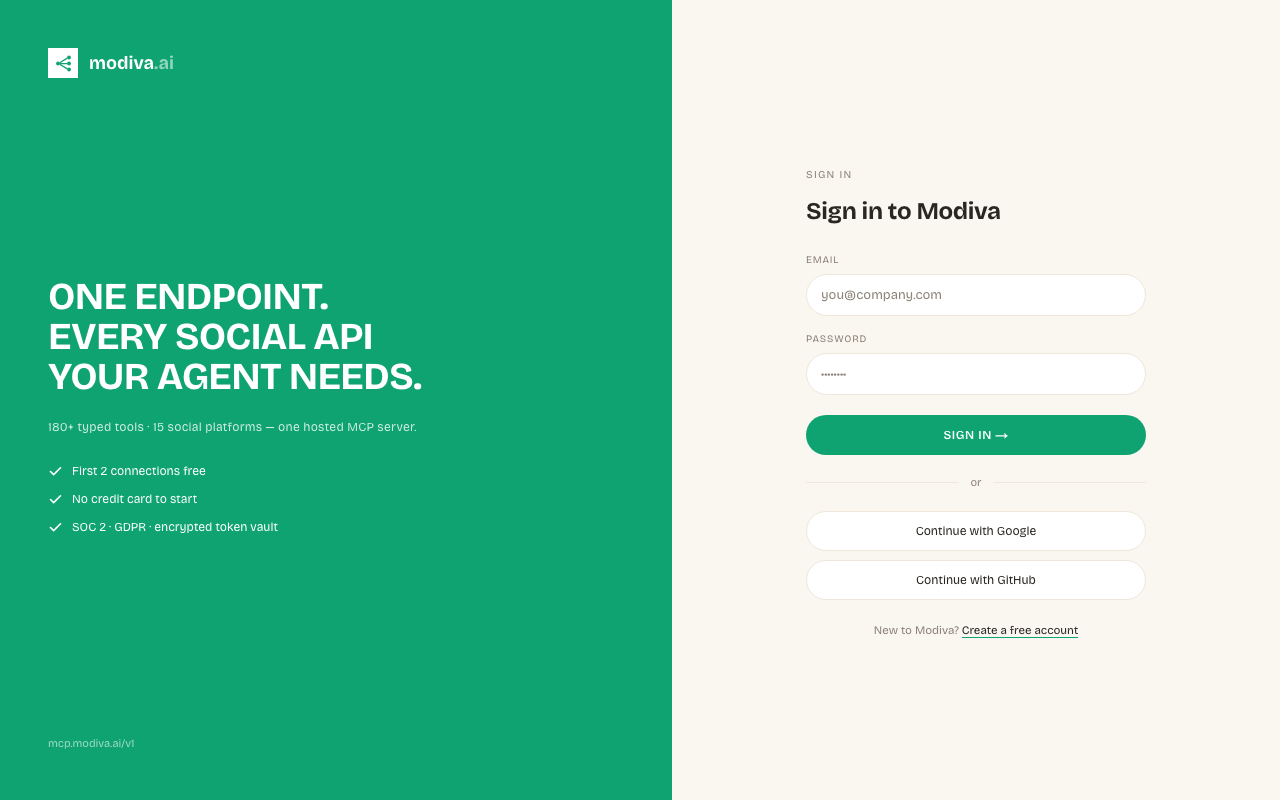
The Modiva dashboard — your home for connections, posts and analytics. - 4
Open Connections → New connection
In the left sidebar choose Connections, then click New connection. You'll see the full catalogue of platforms grouped by category (Social, Ads and CRM).
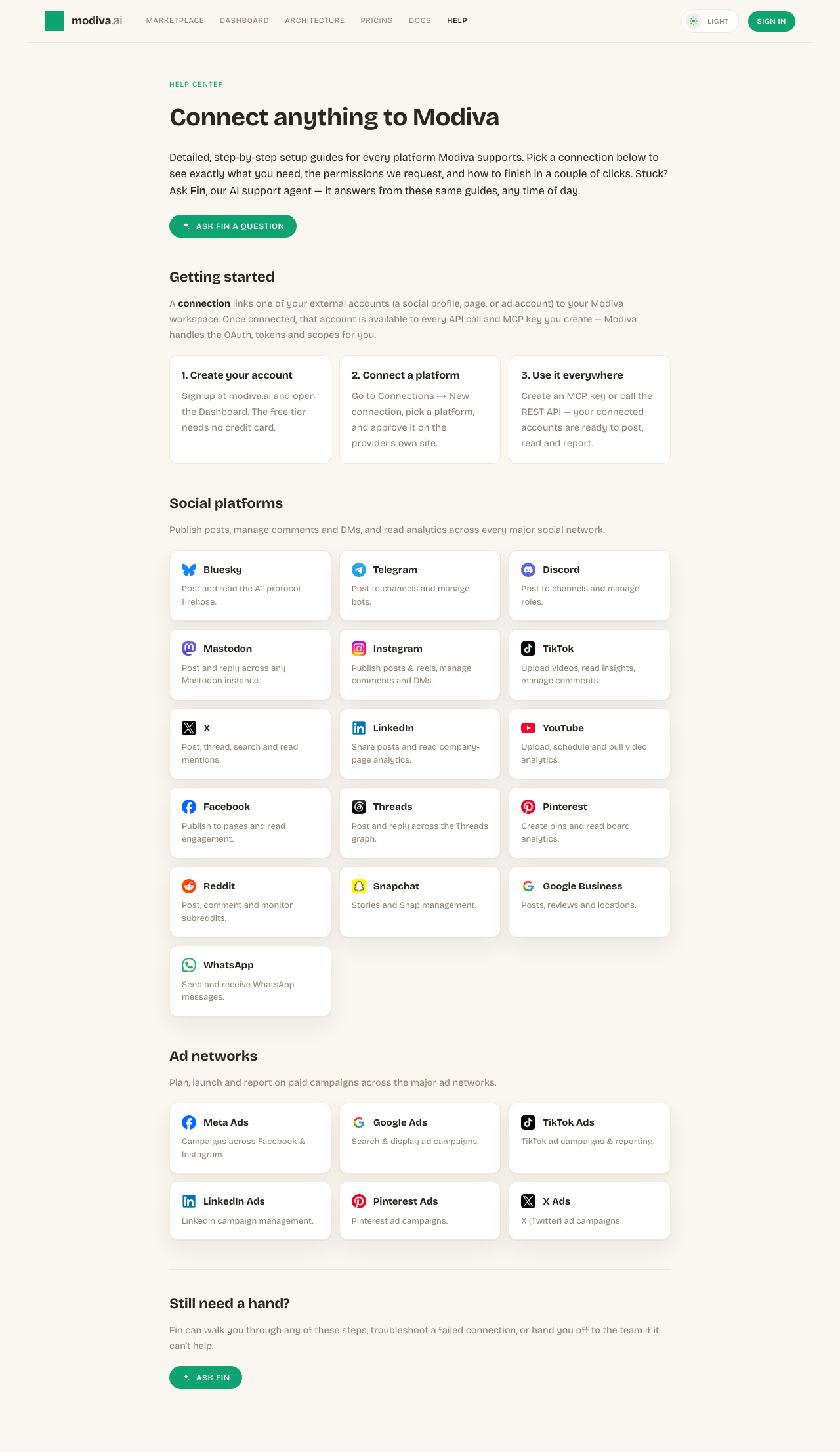
The connection picker. Use the search box or category filter to find your platform. - 5
Enter the bot token
Click the Telegram card, paste the bot token, and optionally set a default chat ID (the channel/group the bot should post to). Click Connect.
Paste the bot token and an optional default chat ID.
Permissions Modiva requests
When you connect Telegram, Modiva asks only for the access it needs to run the tools you use. You can revoke it any time from Telegram or by disconnecting in Modiva.
- Send messages as the bot
- Manage messages in channels/groups where the bot is an admin
Troubleshooting & FAQ
How do I find my chat ID?
Add the bot to the channel, post a message, then visit https://api.telegram.org/bot<token>/getUpdates — the chat id appears in the response. For public channels you can also use @channelusername.
The bot can't post — why?
It almost always means the bot isn't an admin of the channel, or lacks the Post messages permission. Re-check the bot's admin rights.
Need help with Telegram?
Fin can answer follow-up questions and walk you through any step.
