Conectar
X
X (formerly Twitter) connects through OAuth 2.0. You authorize Modiva to post on your behalf, read your profile and read mentions. Offline access keeps the connection alive without re-authorizing daily.
Antes de empezar
- An X account.
- Access to that account to approve the authorization screen.
Configuración paso a paso
- 1
Sign in to Modiva
Log in at modiva.ai and open the Dashboard. You need a Modiva account before you can connect any platform — creating one takes a minute and no credit card is required for the free tier.
The Modiva dashboard — your home for connections, posts and analytics. - 2
Open Connections → New connection
In the left sidebar choose Connections, then click New connection. You'll see the full catalogue of platforms grouped by category (Social, Ads and CRM).
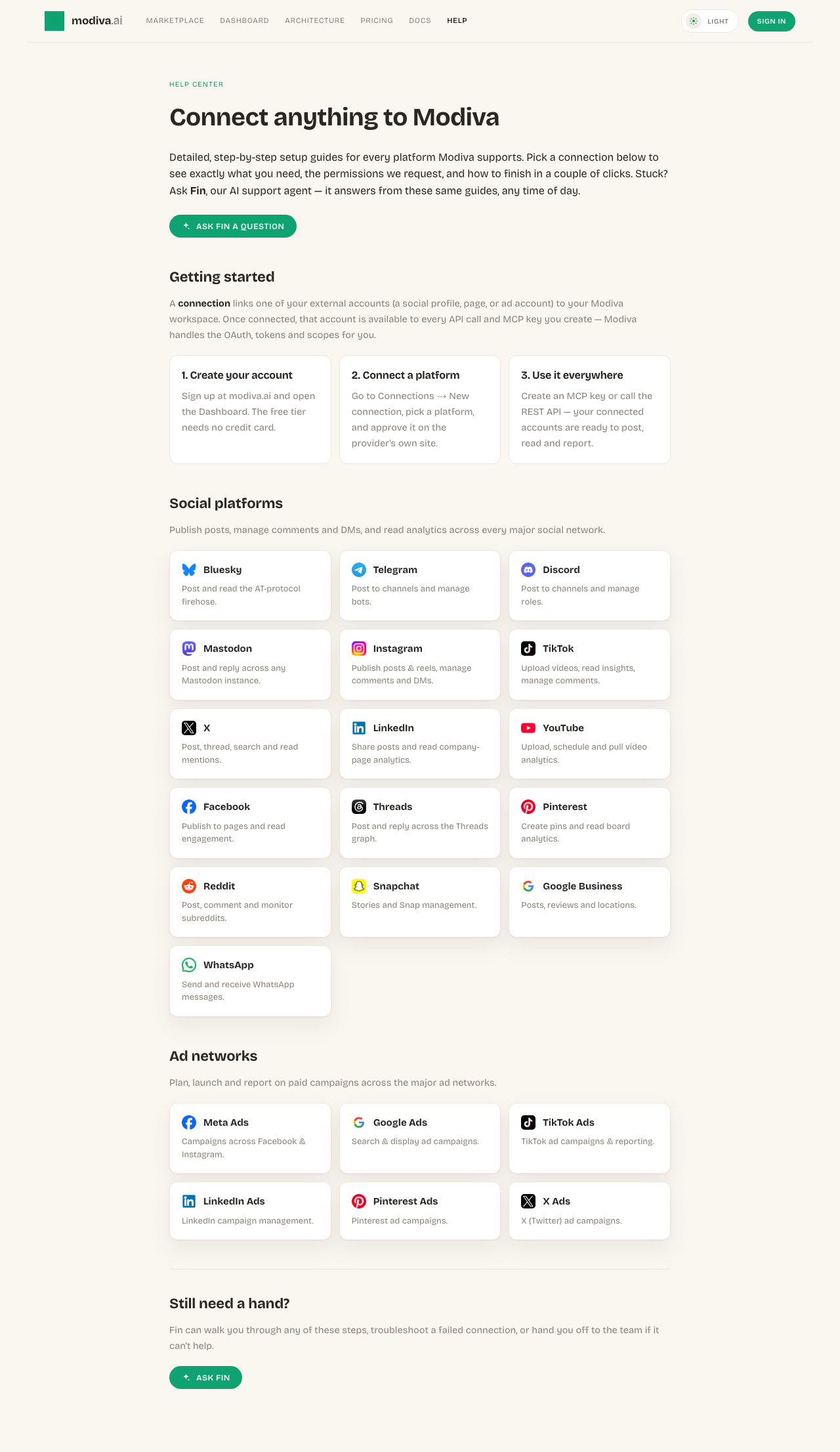
The connection picker. Use the search box or category filter to find your platform. - 3
Select X
Click the X card. Modiva redirects you to X's official sign-in and permission screen — your password is entered on X, never on Modiva.
Click Connect on the X card to start the secure OAuth flow. - 4
Authorize Modiva on X
Review the permissions Modiva is requesting and approve them. If you manage more than one account, page or profile, pick the one you want Modiva to manage.
X's consent screen. Approve the requested scopes to continue. - 5
You're connected
X now sends you back to Modiva and the connection appears with a green Connected status. From here it's available to every MCP key and API call in your workspace.

A healthy connection shows a green dot and the connected account name.
Permisos que solicita Modiva
Cuando conectas X, Modiva solo solicita el acceso que necesita para ejecutar las herramientas que utilizas. Puedes revocarlo en cualquier momento desde X o desconectando en Modiva.
- Read your profile
- Post and reply (including threads)
- Read tweets and mentions
- Stay connected (offline access / token refresh)
Resolución de problemas y FAQ
Where is my X password stored?
Nowhere. You sign in on the provider's own site and Modiva only receives a scoped access token, which is encrypted at rest with AES-256-GCM. Modiva never sees your password.
My connection says Expired or Error — what do I do?
Open Connections, find the platform and click Reconnect (or Refresh token). Providers periodically expire tokens or revoke them when you change your password; reconnecting re-runs the consent screen and restores access.
How do I disconnect?
Open Connections, click the X row and choose Disconnect. Modiva deletes the stored token immediately. You can also revoke Modiva from inside X's own app settings.
Does this work on the free X API tier?
Posting and basic reads work on standard access. Some high-volume search and analytics endpoints depend on your X API access level.
¿Necesitas ayuda con X?
Fin puede responder a preguntas de seguimiento y guiarte por cualquier paso.
Playbooks de X
¿Conectado? Pon X a trabajar con estos playbooks de crecimiento gratuitos.
