Conectar
Discord
Discord connects through a bot token from the Discord Developer Portal. You create an application with a bot, invite it to your server, and paste its token into Modiva.
Antes de empezar
- A Discord account and a server where you have Manage Server permission.
- A bot application created at the Discord Developer Portal, with its bot token.
- The bot invited to your server with the Send Messages permission.
Configuración paso a paso
- 1
Create a Discord application + bot
Go to the Discord Developer Portal → New Application. Open the Bot tab, click Add Bot, then Reset Token and copy the token.

Copy the bot token from the Bot tab — treat it like a password. - 2
Invite the bot to your server
Under OAuth2 → URL Generator select the bot scope and the Send Messages permission, open the generated URL, and add the bot to your server.
Pick the bot scope and Send Messages, then authorize it on your server. - 3
Sign in to Modiva
Log in at modiva.ai and open the Dashboard. You need a Modiva account before you can connect any platform — creating one takes a minute and no credit card is required for the free tier.
The Modiva dashboard — your home for connections, posts and analytics. - 4
Open Connections → New connection
In the left sidebar choose Connections, then click New connection. You'll see the full catalogue of platforms grouped by category (Social, Ads and CRM).
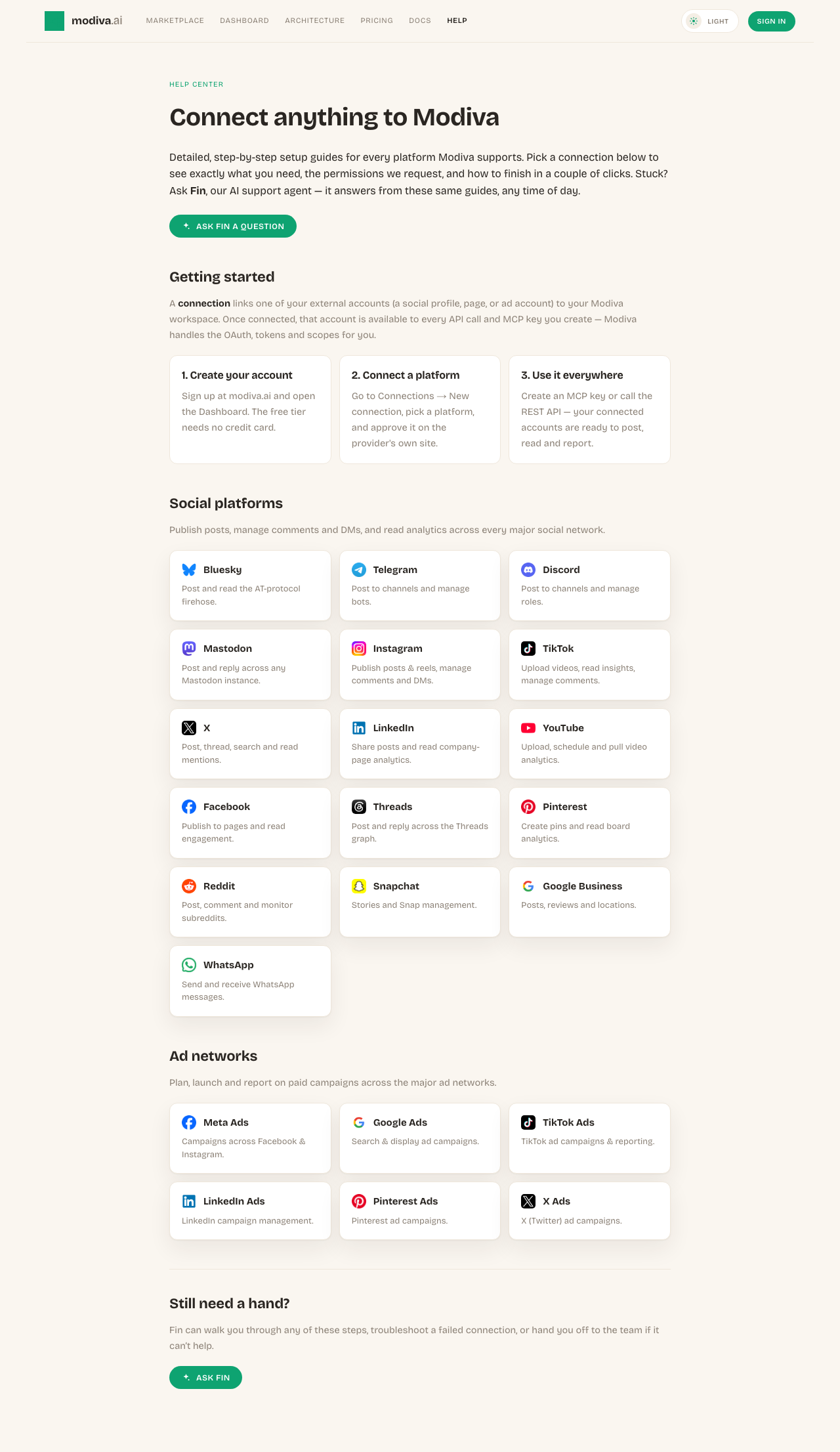
The connection picker. Use the search box or category filter to find your platform. - 5
Enter the bot token
Click the Discord card, paste the bot token, and optionally set a default channel ID. Click Connect.
Paste the bot token and an optional default channel ID.
Permisos que solicita Modiva
Cuando conectas Discord, Modiva solo solicita el acceso que necesita para ejecutar las herramientas que utilizas. Puedes revocarlo en cualquier momento desde Discord o desconectando en Modiva.
- Send messages as the bot
- Manage messages and roles where granted
Resolución de problemas y FAQ
How do I get a channel ID?
Enable Developer Mode in Discord (Settings → Advanced), then right-click a channel and choose Copy Channel ID.
The bot is offline / can't post — why?
Make sure the bot was invited with the Send Messages permission and has access to the target channel. Re-inviting with the correct scopes fixes most issues.
¿Necesitas ayuda con Discord?
Fin puede responder a preguntas de seguimiento y guiarte por cualquier paso.
