Connetti
Meta Ads
Meta Ads connects through the Meta Marketing API. You authorize Modiva against your ad account to plan, launch and report on Facebook and Instagram campaigns.
Prima di iniziare
- A Meta Business account with an active ad account.
- Admin or advertiser access to that ad account.
Configurazione passo passo
- 1
Sign in to Modiva
Log in at modiva.ai and open the Dashboard. You need a Modiva account before you can connect any platform — creating one takes a minute and no credit card is required for the free tier.
The Modiva dashboard — your home for connections, posts and analytics. - 2
Open Connections → New connection
In the left sidebar choose Connections, then click New connection. You'll see the full catalogue of platforms grouped by category (Social, Ads and CRM).
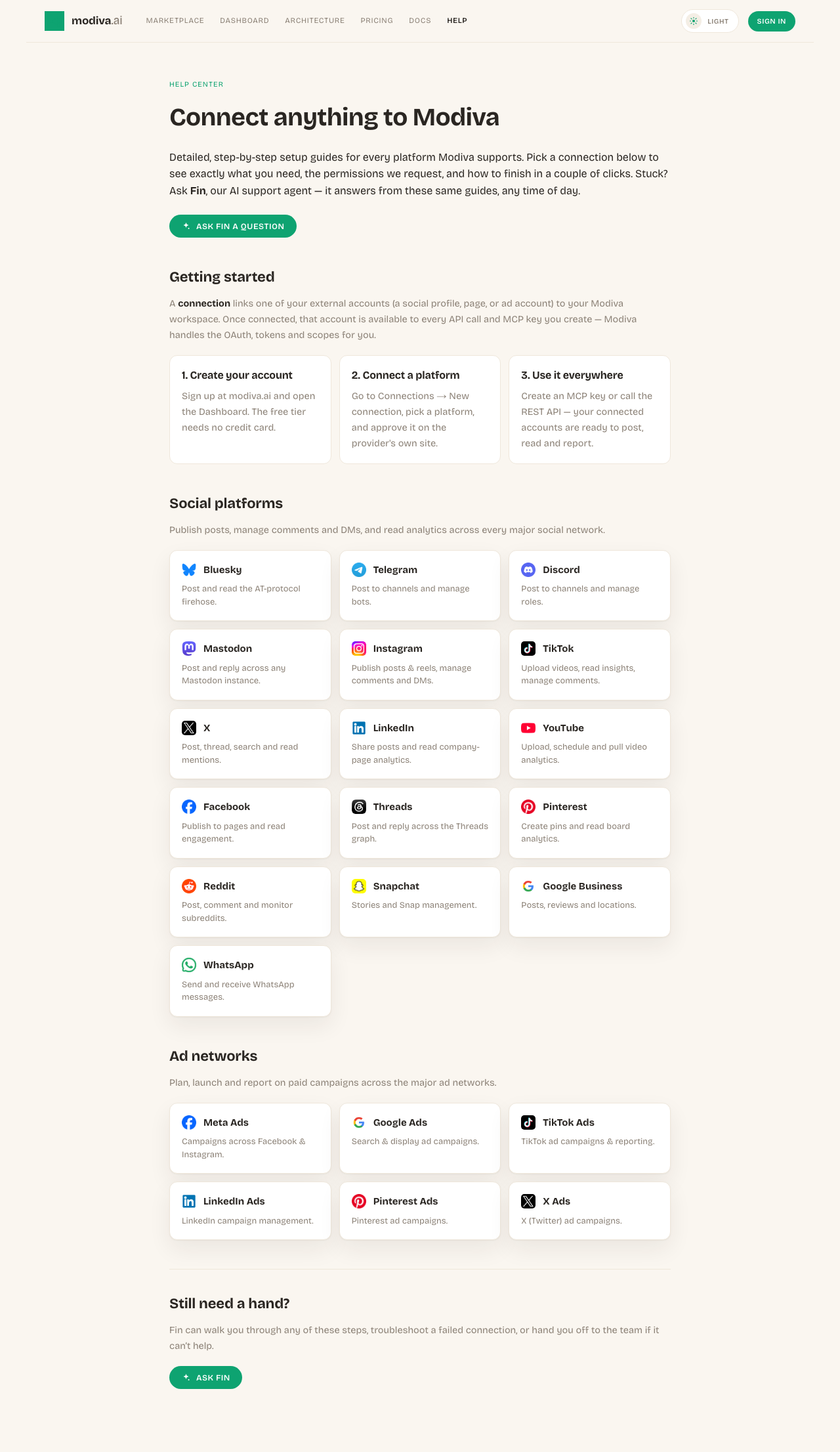
The connection picker. Use the search box or category filter to find your platform. - 3
Select Meta Ads
Click the Meta Ads card. Modiva redirects you to Meta Ads's official sign-in and permission screen — your password is entered on Meta Ads, never on Modiva.
Click Connect on the Meta Ads card to start the secure OAuth flow. - 4
Authorize Modiva on Meta Ads
Review the permissions Modiva is requesting and approve them. If you manage more than one account, page or profile, pick the one you want Modiva to manage.
Meta Ads's consent screen. Approve the requested scopes to continue. - 5
You're connected
Meta Ads now sends you back to Modiva and the connection appears with a green Connected status. From here it's available to every MCP key and API call in your workspace.

A healthy connection shows a green dot and the connected account name.
Permessi richiesti da Modiva
Quando connetti Meta Ads, Modiva richiede solo l'accesso necessario a eseguire gli strumenti che utilizzi. Puoi revocarlo in qualsiasi momento da Meta Ads o disconnettendo in Modiva.
- Manage your ad campaigns (ads_management)
- Read ad performance (ads_read)
Risoluzione dei problemi e FAQ
Where is my Meta Ads password stored?
Nowhere. You sign in on the provider's own site and Modiva only receives a scoped access token, which is encrypted at rest with AES-256-GCM. Modiva never sees your password.
My connection says Expired or Error — what do I do?
Open Connections, find the platform and click Reconnect (or Refresh token). Providers periodically expire tokens or revoke them when you change your password; reconnecting re-runs the consent screen and restores access.
How do I disconnect?
Open Connections, click the Meta Ads row and choose Disconnect. Modiva deletes the stored token immediately. You can also revoke Modiva from inside Meta Ads's own app settings.
Which ad account does Modiva use?
If you have access to multiple ad accounts, you'll select the one to manage during connect. You can connect additional ad accounts separately.
Hai bisogno di aiuto con Meta Ads?
Fin può rispondere alle domande di approfondimento e guidarti attraverso ogni passaggio.
Playbook di Meta Ads
Connesso? Metti Meta Ads al lavoro con questi playbook di crescita gratuiti.