Verbinden
Telegram
Telegram connects through a bot token issued by @BotFather. You create a bot, add it to your channel or group as an admin, and paste its token into Modiva.
Bevor Sie beginnen
- A Telegram account.
- A bot created with @BotFather and its token (looks like 123456:ABC-DEF…).
- The bot added as an administrator to the channel or group you want to post to.
Schritt-für-Schritt-Einrichtung
- 1
Create a bot with @BotFather
In Telegram, open a chat with @BotFather, send /newbot and follow the prompts. BotFather replies with an API token — copy it.

@BotFather returns your bot token after /newbot. - 2
Add the bot to your channel as admin
Open your channel or group, go to Administrators → Add admin, and add your new bot. It needs admin rights to post messages.
Grant the bot Post messages permission in your channel. - 3
Sign in to Modiva
Log in at modiva.ai and open the Dashboard. You need a Modiva account before you can connect any platform — creating one takes a minute and no credit card is required for the free tier.
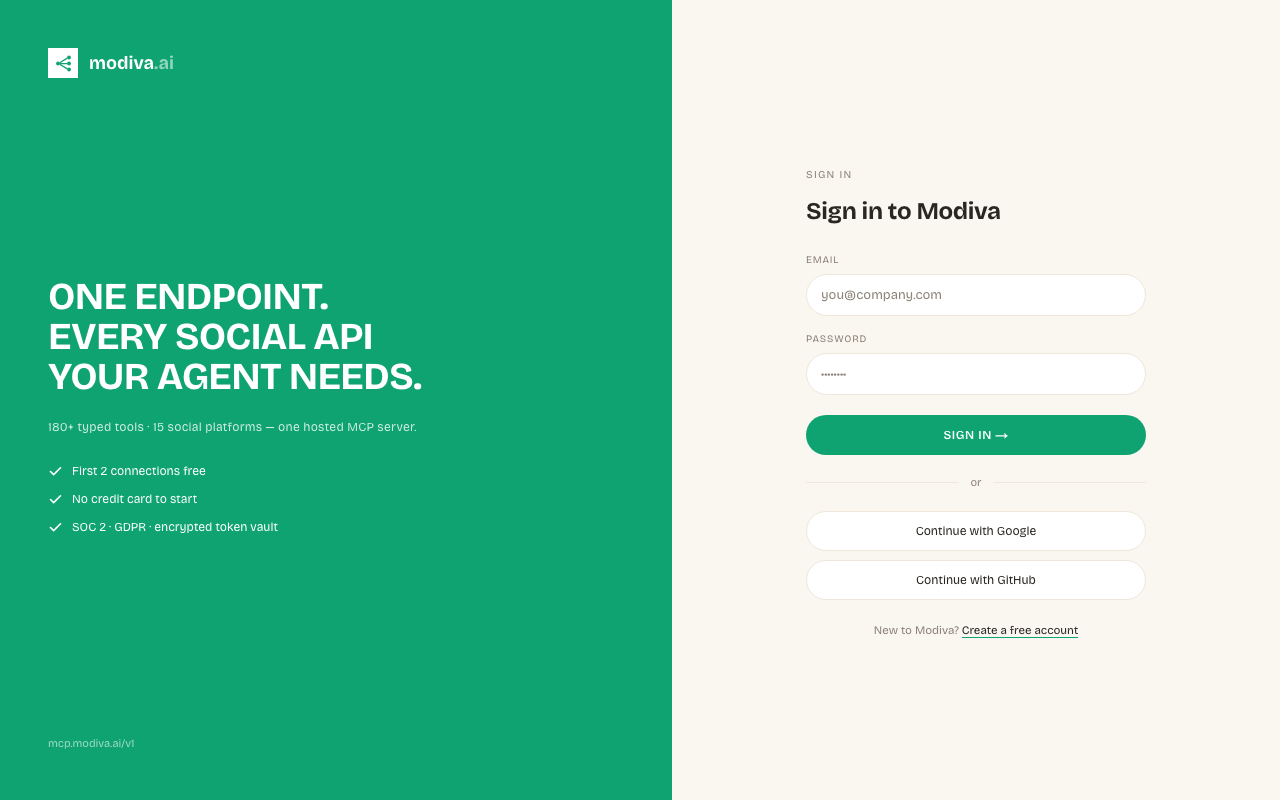
The Modiva dashboard — your home for connections, posts and analytics. - 4
Open Connections → New connection
In the left sidebar choose Connections, then click New connection. You'll see the full catalogue of platforms grouped by category (Social, Ads and CRM).
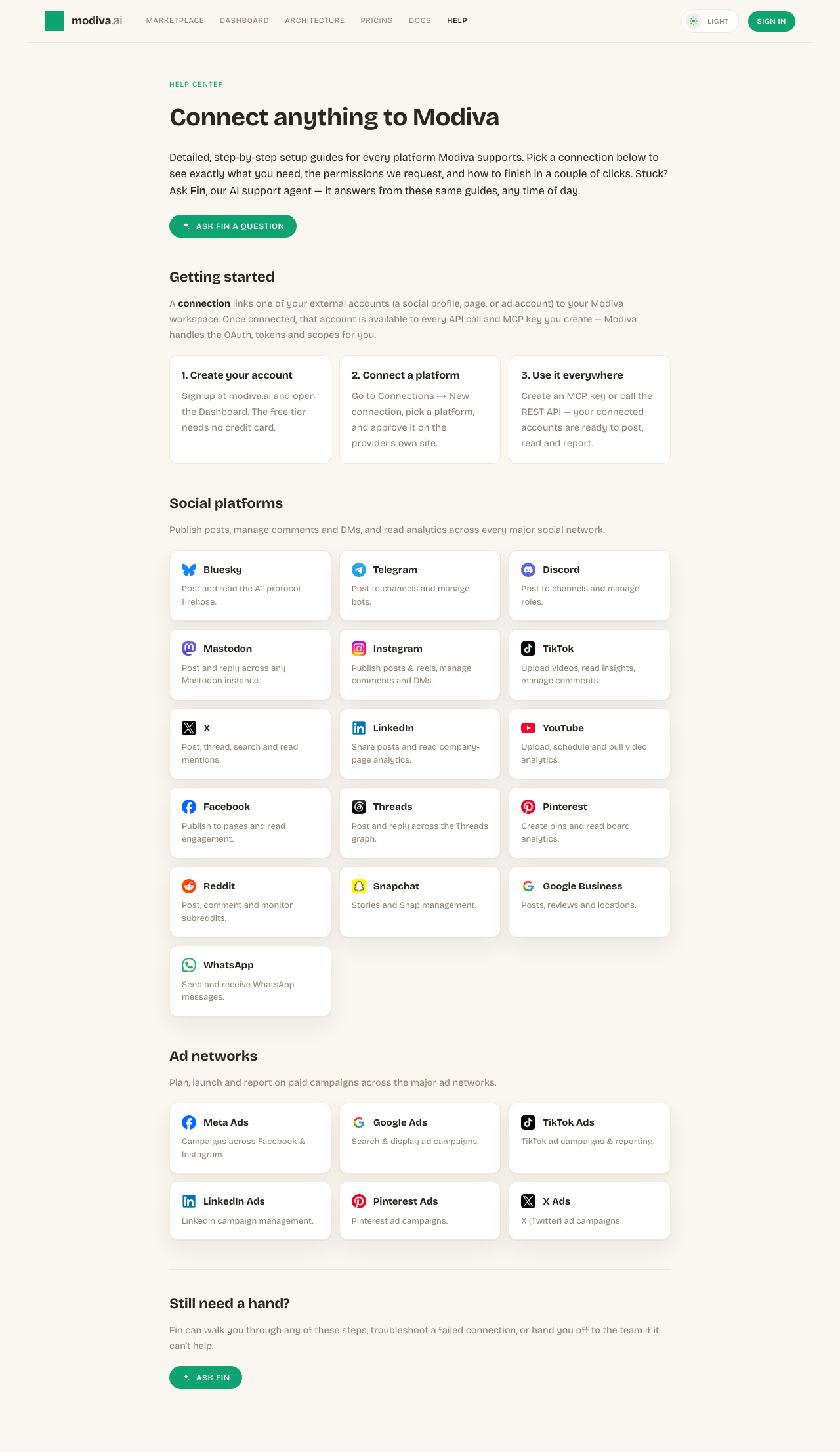
The connection picker. Use the search box or category filter to find your platform. - 5
Enter the bot token
Click the Telegram card, paste the bot token, and optionally set a default chat ID (the channel/group the bot should post to). Click Connect.
Paste the bot token and an optional default chat ID.
Berechtigungen, die Modiva anfordert
Wenn Sie Telegram verbinden, fordert Modiva nur den Zugriff an, der zum Ausführen der von Ihnen genutzten Tools nötig ist. Sie können ihn jederzeit über Telegram oder durch Trennen in Modiva widerrufen.
- Send messages as the bot
- Manage messages in channels/groups where the bot is an admin
Fehlerbehebung & FAQ
How do I find my chat ID?
Add the bot to the channel, post a message, then visit https://api.telegram.org/bot<token>/getUpdates — the chat id appears in the response. For public channels you can also use @channelusername.
The bot can't post — why?
It almost always means the bot isn't an admin of the channel, or lacks the Post messages permission. Re-check the bot's admin rights.
Brauchen Sie Hilfe mit Telegram?
Fin kann Folgefragen beantworten und Sie durch jeden Schritt führen.
