Connecter
Google Ads
Google Ads connects through Google sign-in. You authorize Modiva against the Google account that manages your Google Ads — Modiva detects your customer ID automatically after you approve.
Avant de commencer
- A Google account with access to a Google Ads account.
- Your Google Ads account active (not cancelled).
Configuration pas à pas
- 1
Sign in to Modiva
Log in at modiva.ai and open the Dashboard. You need a Modiva account before you can connect any platform — creating one takes a minute and no credit card is required for the free tier.
The Modiva dashboard — your home for connections, posts and analytics. - 2
Open Connections → New connection
In the left sidebar choose Connections, then click New connection. You'll see the full catalogue of platforms grouped by category (Social, Ads and CRM).
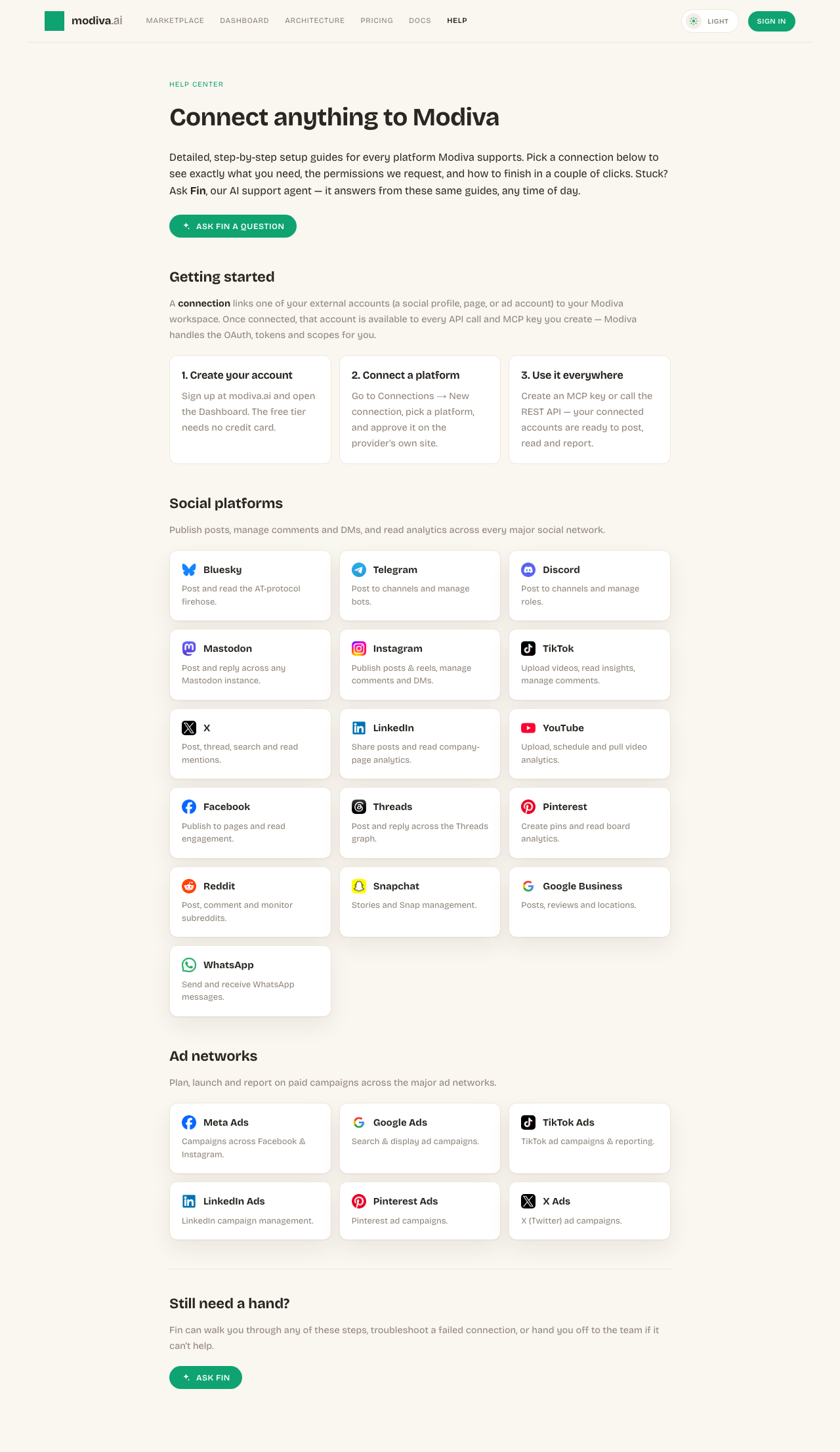
The connection picker. Use the search box or category filter to find your platform. - 3
Select Google Ads
Click the Google Ads card. Modiva redirects you to Google Ads's official sign-in and permission screen — your password is entered on Google Ads, never on Modiva.
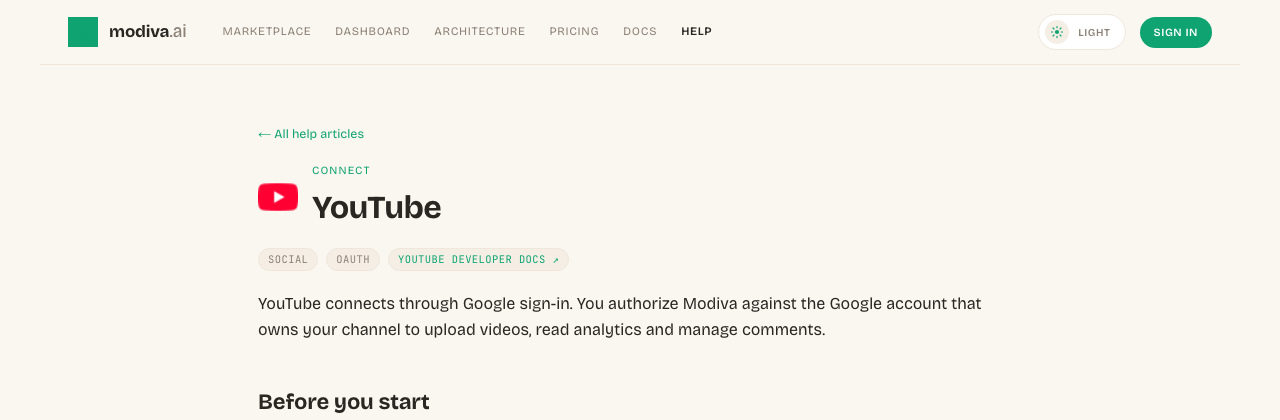
Click Connect on the Google Ads card to start the secure OAuth flow. - 4
Authorize Modiva on Google Ads
Review the permissions Modiva is requesting and approve them. If you manage more than one account, page or profile, pick the one you want Modiva to manage.
Google Ads's consent screen. Approve the requested scopes to continue. - 5
You're connected
Google Ads now sends you back to Modiva and the connection appears with a green Connected status. From here it's available to every MCP key and API call in your workspace.

A healthy connection shows a green dot and the connected account name.
Autorisations demandées par Modiva
Lorsque vous connectez Google Ads, Modiva ne demande que l'accès dont elle a besoin pour exécuter les outils que vous utilisez. Vous pouvez le révoquer à tout moment depuis Google Ads ou en vous déconnectant dans Modiva.
- Manage your Google Ads campaigns (adwords)
- Read campaign performance reports
Dépannage et FAQ
Where is my Google Ads password stored?
Nowhere. You sign in on the provider's own site and Modiva only receives a scoped access token, which is encrypted at rest with AES-256-GCM. Modiva never sees your password.
My connection says Expired or Error — what do I do?
Open Connections, find the platform and click Reconnect (or Refresh token). Providers periodically expire tokens or revoke them when you change your password; reconnecting re-runs the consent screen and restores access.
How do I disconnect?
Open Connections, click the Google Ads row and choose Disconnect. Modiva deletes the stored token immediately. You can also revoke Modiva from inside Google Ads's own app settings.
Do I need to enter my customer ID?
No — after you approve, Modiva fetches your accessible Google Ads customer ID automatically and stores it with the connection.
I manage accounts under an MCC.
Connect with the Google account that has access; Modiva resolves the customer IDs you can reach. Manager (MCC) hierarchies are supported.
Besoin d'aide avec Google Ads ?
Fin peut répondre aux questions de suivi et vous guider à travers chaque étape.
Playbooks Google Ads
Connecté ? Mettez Google Ads au travail avec ces playbooks de croissance gratuits.